 PCFolders
A Windows-style File Explorer for Mac: what changes and how to get it back
Short answer: Finder is the Mac’s file manager, but it is not built like File Explorer. You can tune Finder to feel closer, or install PCFolders, which adds a folder tree, editable path bar, This PC, real cut and paste, and PC shortcuts on top of macOS.
Seven things that work differently in Finder
- Return renames a file instead of opening it. Open with Command-O or Command-Down Arrow.
- There is no Cut command for files. You copy, then choose Move Item Here (Option-Command-V).
- The Delete key does not delete. Command-Delete moves an item to the Trash.
- There is no This PC page by default; disks live under Locations in the sidebar or in Go → Computer.
- The path bar at the bottom is read-only. To type a path you use Go → Go to Folder.
- Folders and files are mixed when sorting by name unless you turn on Keep folders on top.
- File extensions and hidden files are hidden by default.
Make Finder feel more familiar
- View → Show Path Bar (Option-Command-P) and View → Show Status Bar (Command-/).
- Finder → Settings → Advanced: turn on Show all filename extensions and Keep folders on top (In windows when sorting by name).
- Finder → Settings → Sidebar: tick Hard disks and External disks to see drives in the sidebar.
- Press Shift-Command-Period to show or hide hidden files.
Use a PC-style file explorer on Mac
If you would rather keep your Windows habits, PCFolders gives you the Explorer layout as a regular Mac App Store app. It works alongside Finder: files open in their usual apps, and Show in Finder is always one click away.
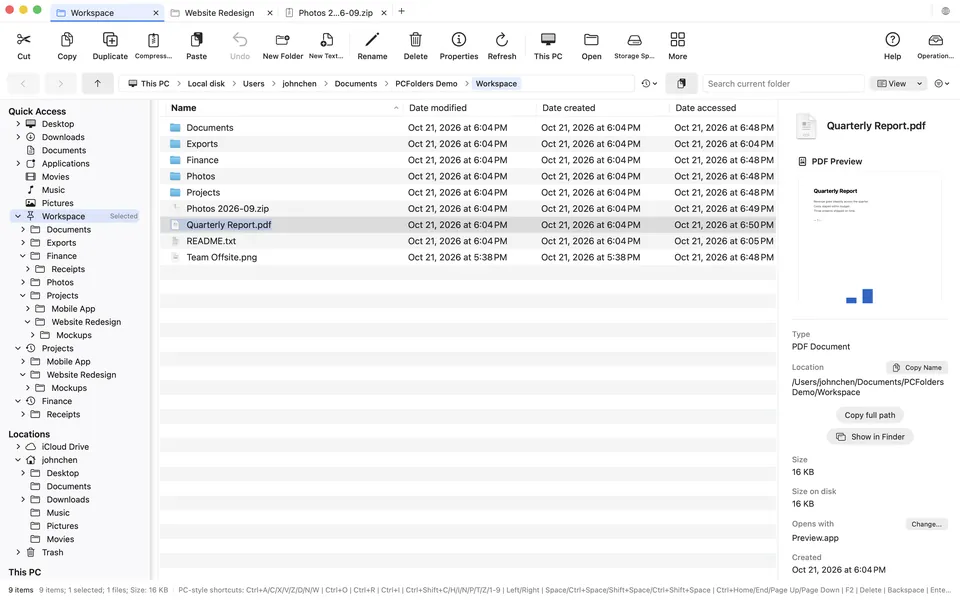
- Enter opens, F2 renames, fn+Delete moves to the Trash, the Delete (Backspace) key goes up a folder.
- Ctrl+X and Ctrl+V move files; pasted files stay selected.
- An editable address bar that also accepts Windows-style paths such as C:\Users\you\Downloads.
- Tabs that each keep their own history, selection, view and sorting.
- A file operation center for long copies and moves, with progress, conflict choices, cancel and history.
Finder vs File Explorer vs PCFolders
| Task | Windows | Finder | PCFolders |
|---|---|---|---|
| Open | Enter | ⌘O | Enter |
| Rename | F2 | Return | F2 |
| Cut and paste | Ctrl+X, Ctrl+V | ⌘C, ⌥⌘V | Ctrl+X, Ctrl+V |
| Delete | Delete | ⌘Delete | fn+Delete / ⌘Delete |
| Type a path | Ctrl+L | ⇧⌘G | Ctrl+L |
| Parent folder | Alt+Up | ⌘↑ | Alt+Up |
| Properties | Alt+Enter | ⌘I | Alt+Enter |
| This PC | Yes | Go → Computer | Yes |