 PCFolders
How to open a ZIP file on Mac without extracting it
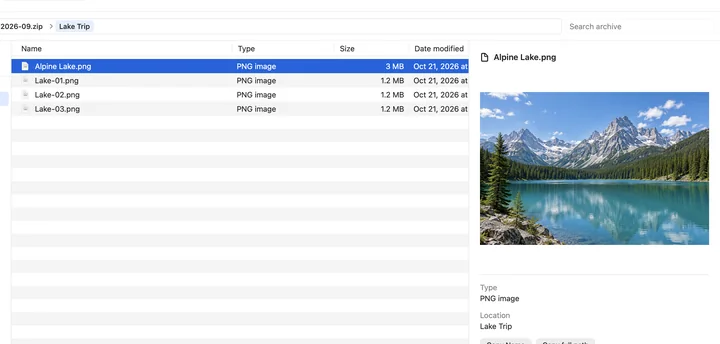
Short answer: Finder can’t open a ZIP without extracting it — double-clicking always unpacks the whole archive. Use unzip -l in Terminal to list the contents, or open the ZIP like a folder in PCFolders to browse, preview and extract only what you need.
What happens in Finder
Double-clicking a .zip file hands it to Archive Utility, which extracts everything next to the archive. That is fine for small files, but slow and cluttered when you only need one photo from a large archive.
List the contents or extract one file in Terminal
- List files:
unzip -l ~/Downloads/archive.zip - Extract one file to the Desktop:
unzip ~/Downloads/archive.zip "photos/IMG_0001.jpg" -d ~/Desktop
Browse ZIP files like folders in PCFolders
In PCFolders a ZIP opens in its own tab. Browse its folders, search by name, preview images and documents, then choose Extract All or Extract Selected. Extraction runs in the file operation center with progress and cancel, and View Results takes you to the new files. Chinese file names from newer Macs and PCs display correctly.